Self-regulation
- Self-regulation
You have the option to activate the self-regulation feature only for VTherms of type over_climate.
There are generally two cases:
- If your underlying device is a TRV and the valve is directly controllable in Home Assistant (e.g., Sonoff TRVZB), this function will allow VTherm to directly manipulate the valve opening to regulate the temperature. The opening is then calculated by a TPI-type algorithm (see here).
- Otherwise, Versatile Thermostat will adjust the temperature setpoint given to the underlying climate to ensure the room temperature actually reaches the setpoint.
Configuration
Self-regulation by direct valve control
This type of self-regulation called Direct valve control requires:
- a
climateentity that is set in the underlying entities of the VTherm, - a
numberentity that allows controlling the valve opening rate of the TRV, - an optional
numberentity allowing to control the valve closing
When the chosen self-regulation is Direct valve control on an over_climate VTherm, a new configuration page called Valve regulation configuration appears:

It allows configuring the valve control entities:
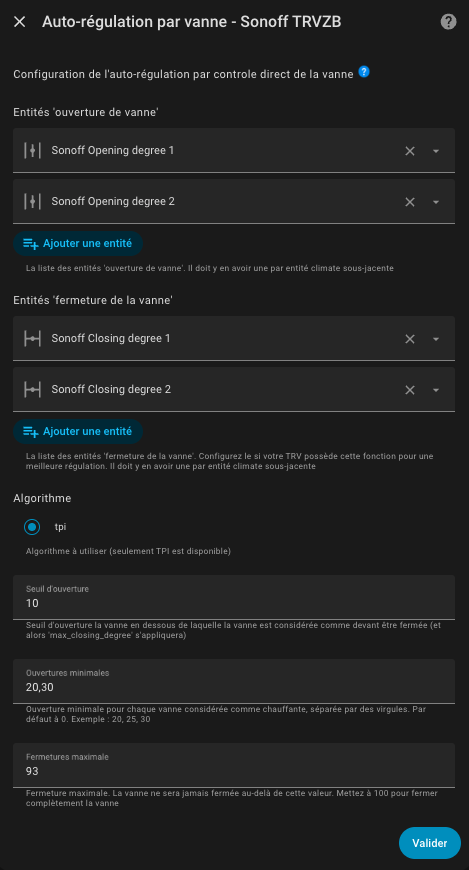
You must provide:
- as many valve opening control entities as there are underlying entities and in the same order. These parameters are mandatory,
- as many closing rate control entities as there are underlying entities and in the same order. These parameters are optional; they must all be provided or none,
opening_threshold: the minimum valve opening below which the valve should be considered closed, and consequently, the 'max_closing_degree' parameter applies,max_closing_degree: the absolute maximum closing percentage. The valve will never close more than what is indicated in this value. If you want to allow complete valve closing, then leave this parameter at 100,minimum_opening_degrees: the minimum opening percentage when theopening_thresholdis exceeded and the VTherm needs to heat. This field is customizable per valve in the case of a VTherm with multiple valves. You specify the list of minimum openings separated by ','. The default value is 0. Example: '20, 25, 30'. When heating starts (ie the requested opening is greater thanopening_threshold), the valve will open with a value greater than or equal to this and will continue to increase regularly if necessary.max_opening_degrees: the maximum opening percentage that the valve can reach. This field is customizable per valve in the case of a VTherm with multiple valves. You specify the list of maximum openings separated by ','. The default value is 100 (full opening). Example: '80, 85, 90'. The valve will never open beyond this value, allowing you to limit the hot water flow and optimize energy consumption. This value must be strictly greater thanminimum_opening_degreesfor each valve.
The opening rate calculation algorithm is based on TPI which is described here. It is the same algorithm used for over_switch and over_valve VTherm.
If a valve closing rate entity is configured, it will be set to the value 100 - opening rate to force the valve into a state, otherwise it is set to 100.
Notes
- the
hvac_actionattribute of Sonoff TRVZB TRVs is capricious. If the internal temperature of the TRV is too offset from the room temperature, theclimateentity may indicate that the TRV is not heating even though the valve is forced open by VTherm. This defect has no consequences since theclimateentity of the VTherm is corrected and takes into account the valve opening to set itshvac_actionattribute. This defect is minimized but not completely eliminated by configuring the offset calibration.- the VTherm attribute
valve_open_percentmay not be equal to the 'opening degree' value sent to the valve. If you use one of the four parametersopening_threshold,max_closing_degree,minimum_opening_degreesormax_opening_degrees, an adjustment is made. The custom attributevalve_open_percentis then the raw value calculated by VTherm. The 'opening degree' value sent to the valve may be adapted.- some equipment has values that do not necessarily range from 0 to 100. VTherm automatically adapts to the allowed ranges for your equipment.
- If you use the regulation parameter
regulation_threshold(see over_climate regulation), then theopening_thresholdwill be adjusted so that it is never below this value. Indeed, theregulation_thresholdis the regulation unit below which the setpoint is not sent. Setting anopening_thresholdwould have no effect.- A VTherm is considered active if
opening_thresholdis exceeded. Consequently, if the VTherm controls a central boiler, it will not be turned on below this value.
How to properly adjust the parameters that control the opening?
Note : a graphical visualization of the impacts of the valve opening adjustment parameters is available here. Thanks a lot to @nicklassim80 for this contribution.
The 4 valve opening adjustment parameters allow fine-tuning of valve behavior, especially at the beginning of the heating cycle. If we represent the opening requested by the TPI algorithm on the x-axis and the opening actually sent to the valve on the y-axis, we get this curve:
<img src="../../images/opening-degree-graph.png" alt="opening parameters adjustment" width="600">Case 1: you have a 15% dead zone on your valve (the first 15% do not allow hot water to circulate)
The settings can then be:
minimum_opening_degrees: 15. As soon as heating is needed, it must heat at least 15%,max_closing_degree: the default value (100) to allow complete closing,opening_threshold: the default value (0) to trigger heating as soon as necessary
You then have the following curve:
<img src="../../images/opening-degree-default-1.png" alt="opening parameters adjustment" width="400">or if you have not defined a regulation_threshold:
Case 2: you never want to completely close the valve nor open totally the valve
This case allows handling parasitic noise during complete closing or as a safety measure to always let some water circulate and avoid damaging the circulator. The settings can then be as follows:
minimum_opening_degrees: 10 to heat at least 10% when heating is needed,max_closing_degree: 90 to always leave at least 10% opening,opening_threshold: 10 to consider that the first 10% do not heat. The TRV is then inIdlemodemax_opening_degrees: 50 to limit the openess of the valve to 50%.
You then have the following curve:
<img src="../../images/opening-degree-default-3.png" alt="opening parameters adjustment" width="400">Other self-regulation
In the second case, Versatile Thermostat calculates an offset based on the following information:
- The current difference between the actual temperature and the setpoint temperature, called the gross error.
- The accumulation of past errors.
- The difference between the outdoor temperature and the setpoint.
These three pieces of information are combined to calculate the offset, which will be added to the current setpoint and sent to the underlying climate.
Self-regulation is configured with:
- A regulation degree:
- Light - for small self-regulation needs. In this mode, the maximum offset will be 1.5°C.
- Medium - for medium self-regulation needs. A maximum offset of 2°C is possible in this mode.
- Strong - for high self-regulation needs. The maximum offset is 3°C in this mode, and the self-regulation will react strongly to temperature changes.
- A self-regulation threshold: the value below which no new regulation will be applied. For example, if at time t the offset is 2°C, and at the next calculation, the offset is 2.4°C, the regulation will not be applied. It will only be applied when the difference between the two offsets is at least equal to this threshold.
- Minimum period between two self-regulations: this number, expressed in minutes, indicates the duration between two regulation changes.
These three parameters allow you to adjust the regulation and avoid applying too many regulation changes. Some devices, like TRVs or boilers, don't like frequent setpoint changes.
- Do not start self-regulation immediately. Observe how your equipment's natural regulation works. If you notice that the setpoint is not reached or takes too long to reach, start the regulation.
- Start with light self-regulation and keep both parameters at their default values. Wait a few days and check if the situation improves.
- If it's not enough, switch to medium self-regulation and wait for stabilization.
- If it's still not enough, switch to strong self-regulation.
- If it's still not correct, you will need to switch to expert mode to finely adjust the regulation parameters.
Self-regulation forces the equipment to push further by regularly adjusting its setpoint. This can increase both its consumption and wear.
Self-regulation in Expert Mode
In Expert mode, you can finely adjust the self-regulation parameters to meet your goals and optimize performance. The algorithm calculates the gap between the setpoint and the actual room temperature. This gap is called the error.
The adjustable parameters are as follows:
kp: the factor applied to the gross error,ki: the factor applied to the accumulated errors,k_ext: the factor applied to the difference between the indoor temperature and the outdoor temperature,offset_max: the maximum correction (offset) that the regulation can apply,accumulated_error_threshold: the maximum for error accumulation.overheat_protection: if enabled, the accumulated error will be divided by 2 in case of sign inversion.
For tuning, the following observations should be considered:
kp * errorwill give the offset related to the gross error. This offset is directly proportional to the error and will be 0 when the target is reached.- The accumulation of the error helps correct the stabilization curve even if there is still an error. The error accumulates and the offset increases progressively, which should stabilize the temperature around the target. To have a noticeable effect, this parameter should not be too small. A medium value is 30.
ki * accumulated_error_thresholdwill give the maximum offset related to the accumulated error.k_extallows immediate (without waiting for accumulated errors) correction when the outdoor temperature is much different from the target temperature. If the stabilization occurs too high when the temperature differences are large, this parameter might be too high. It should be adjustable to zero to allow the first two offsets to do the work.
The pre-programmed values are as follows:
Slow regulation:
kp: 0.2  # 20% of the current internal regulation offset are caused by the current difference of target temperature and room temperature
ki: 0.8 / 288.0  # 80% of the current internal regulation offset are caused by the average offset of the past 24 hours
k_ext: 1.0 / 25.0  # this will add 1°C to the offset when it's 25°C colder outdoor than indoor
offset_max: 2.0  # limit to a final offset of -2°C to +2°C
accumulated_error_threshold: 2.0 * 288  # this allows up to 2°C long term offset in both directions
overheat_protection: true
Light regulation:
kp: 0.2
ki: 0.05
k_ext: 0.05
offset_max: 1.5
accumulated_error_threshold: 10
overheat_protection: true
Medium regulation:
kp: 0.3
ki: 0.05
k_ext: 0.1
offset_max: 2
accumulated_error_threshold: 20
overheat_protection: true
Strong regulation:
"""Strong parameters for regulation
A set of parameters which doesn't take into account the external temp
and concentrate on internal temp error + accumulated error.
This should work for cold external conditions which otherwise generate
high external_offset"""

kp: 0.4
ki: 0.08
k_ext: 0.0
offset_max: 5
accumulated_error_threshold: 50
overheat_protection: true
To use Expert mode, you must declare the values you wish to use for each of these parameters in your configuration.yaml as follows. Example for 'Extreme regulation':
versatile_thermostat:
    auto_regulation_expert:
        kp: 0.6
        ki: 0.1
        k_ext: 0.0
        offset_max: 10
        accumulated_error_threshold: 80
        overheat_protection: true
and of course, configure the auto-regulation mode of the VTherm to Expert mode. All VTherms in Expert mode will use the same parameters, it is not possible to have different expert settings.
To apply the changes, you must either restart Home Assistant completely or just the Versatile Thermostat integration (Developer Tools / YAML / Reload Configuration / Versatile Thermostat).
- In expert mode, it is rarely necessary to use the option Compensate the internal temperature of the underlying. This could result in very high setpoints.
Summary of the Auto-Regulation Algorithm
A summary of the auto-regulation algorithm is described here