over_climate Type Thermostat
over_climateType Thermostat
Prerequisites
Devices that can be controlled by an over_climate VTherm (air conditioners, heat pumps, TRVs...) are listed in the device catalog, and the thermostatic valves in the TRV catalog.
The installation should look like this:
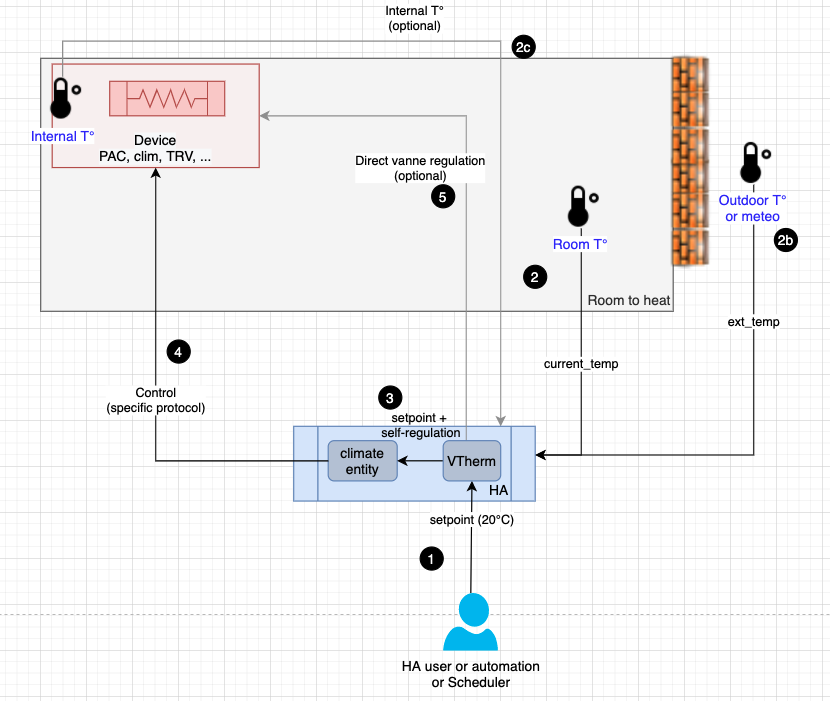
- The user or automation, or the Scheduler, sets a setpoint via a preset or directly using a temperature.
- Periodically, the internal thermometer (2), external thermometer (2b), or equipment's internal thermometer (2c) sends the measured temperature. The internal thermometer should be placed in a relevant spot for the user's comfort: ideally in the middle of the living space. Avoid placing it too close to a window or equipment.
- Based on the setpoint values, differences, and self-regulation parameters (see auto-regulation), VTherm will calculate a setpoint to send to the underlying
climateentity. - The
climateentity controls the equipment using its own protocol. - Depending on the chosen regulation options, VTherm may directly control the opening of a thermostatic valve or calibrate the equipment so that its internal temperature reflects the room temperature.
Configuration
First, configure the main settings common to all VTherms (see main settings). Then, click on the "Underlyings" option from the menu, and you will see this configuration page:
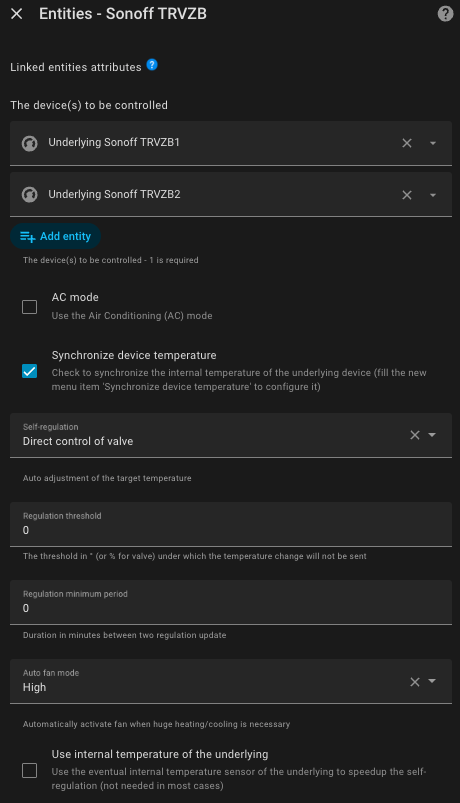
The Underlying Entities
In the "Equipment to Control" list, you should add the climate entities that will be controlled by VTherm. Only entities of type climate are accepted.
AC Mode
You can choose an over_climate thermostat to control an air conditioner (reversible or not) by checking the "AC Mode" box. If the equipment allows it, both 'Heating' and 'Cooling' modes will be available.
Synchronization of the internal temperature of underlying entities
This function allows for much better regulation as it synchronizes the internal thermometer of the underlying climate entities with the room temperature measured by VTherm. It is described here.
Self-Regulation
In over_climate mode, the device uses its own regulation algorithm: it turns on/off and pauses automatically based on the setpoint transmitted by VTherm through its climate entity. It uses its internal thermometer and the received setpoint.
Depending on the equipment, this internal regulation may vary in quality. It greatly depends on the quality of the equipment, the functionality of its internal thermometer, and its internal algorithm. To improve equipment that regulates poorly, VTherm offers a way to adjust the setpoint it sends by increasing or decreasing it based on the room temperature measured by VTherm, rather than the internal temperature.
The self-regulation options are described in detail here.
To avoid overloading the underlying equipment (some may beep unpleasantly, others run on batteries, etc.), two thresholds are available to limit the number of requests:
- Regulation Threshold: a threshold in ° (or %) below which a new setpoint will not be sent. If the last setpoint was 22°, the next one will be 22° ± regulation threshold. If a direct valve regulation is used (
over_valveorover_climatewith direct valve regulation, this value should in percentage and should not below 3% for Sonoff TRVZB (else the Sonoff TRVZB can lost its calibration). - Minimum Regulation Period (in minutes): a minimum time interval below which a new setpoint will not be sent. If the last setpoint was sent at 11:00, the next one cannot be sent before 11:00 + minimum regulation period.
Improperly setting these thresholds may prevent correct self-regulation as new setpoints won't be sent.
Valve regulation startup with write-only degrees
With auto_regulation_valve, some number entities used for opening and closing degrees are write-only setpoints. After a Home Assistant restart or an integration reload, they can remain unknown even though the underlying climate entity is usable.
After installing its normal listeners, VTherm inspects the configured opening/closing pair once. Only when every target is numeric or exactly unknown, all regulation limits and every number entity min/max bound are valid, it calculates the normal closing pair with demand 0. It writes at most once, through the regular number helper, and only to targets that are exactly unknown; numeric targets are never rewritten.
If a target is unavailable, absent, None, non-numeric, or has invalid bounds, VTherm writes nothing to either target. A service call or its absence of error is not feedback: the underlying remains uninitialized until UnderlyingStateManager receives normal numeric state events for every required target. There is no timeout, retry, fallback, or readiness override.
The diagnostics under vtherm_over_climate_valve.underlying_valves expose seed_targets and seed_attempted_targets; these fields describe attempts only and never availability. Check the configured entities, their min/max bounds, and numeric feedback. After correcting a configuration or device problem, reload the integration or restart Home Assistant to create a new one-shot budget.
Auto-Fan (Auto Ventilation)
This mode, introduced in version 4.3, forces the use of ventilation if the temperature difference is significant. By activating ventilation, heat distribution occurs more quickly, which helps achieve the target temperature faster. You can choose which ventilation level to activate from the following options: Low, Medium, High, Turbo.
Of course, your underlying equipment must have ventilation, and it must be controllable for this to work. If your equipment doesn't include the Turbo mode, the High mode will be used instead. Once the temperature difference becomes small again, the ventilation will switch to a "normal" mode, which depends on your equipment (in order): Mute, Quiet, Auto, Low. The first available mode for your equipment will be chosen.
External plugin An enhanced version of auto-fan is available as an external plugin. This plugin offers additional configuration options and finer control of automatic ventilation. Check the plugins page to discover this plugin.
Compensating for the Internal Temperature of the Underlying Equipment
Warning: This option must not be used with direct valve control regulation if a calibration entity has been provided.
Sometimes, the internal thermometer of the underlying equipment (TRV, air conditioner, etc.) is inaccurate to the point that self-regulation is insufficient. This happens when the internal thermometer is placed too close to the heat source. The internal temperature rises much faster than the room temperature, leading to regulation failures. Example:
- Room temperature is 18°, setpoint is 20°.
- The internal temperature of the equipment is 22°.
- If VTherm sends a setpoint of 21° (= 20° + 1° of self-regulation), the equipment will not heat because its internal temperature (22°) is higher than the setpoint (21°).
To address this, a new optional feature has been added in version 5.4: 
When activated, this feature adds the difference between the internal temperature and the room temperature to the setpoint to force heating. In the above example, the difference is +4° (22° - 18°), so VTherm will send 25° (21° + 4°) to the equipment, forcing it to heat.
This difference is calculated for each underlying equipment since each has its own internal temperature. For example, a VTherm connected to three TRVs, each with its own internal temperature.
This results in much more effective self-regulation that avoids issues with large internal temperature differences due to faulty sensors.
However, be aware that some internal temperatures fluctuate so quickly and inaccurately that they completely skew the calculation. In this case, it’s better to disable this option.
You will find advice on how to adjust these settings properly on the page self-regulation.
Specific Functions
Specific functions can be configured through a dedicated option in the menu.
The specific functions that require configuration for this type of VTherm are:
- Auto-Start/Stop: Automatic start and stop of VTherm based on usage forecasts. This is described here: auto-start/stop function.
- If valve regulation is chosen, the TPI algorithm configuration is accessible from the menu. See (algorithms).
- if valve regulation is selected, you can set the VTherm to dormant (sleep) mode. The dormant mode is specific to this type of thermostat and allows you to turn off the VTherm while keeping the valve fully 100% open. There are two ways to activate the dormant mode:
- either with the VTherm UI Card by pressing the 'Zzz' button mode,
- or by calling an action named
service_set_hvac_mode_sleep. See Actions
Follow Underlying Temperature Changes
Some users want to continue using their equipment as before (without VTherm). For example, you might want to use the remote control of your PAC or turn the knob on your TRV.
If you are in this case, an entity has been added to the VTherm device called Follow underlying temp changes:

When this entity is 'On', HVAC mode changes continue to be followed as before. Setpoint tracking is active from startup, even if VTherm has not yet sent an order to the TRV. A newly observed setpoint is retained as a candidate and applied if it remains stable for five seconds; each distinct new value restarts the wait. Duplicates do not extend it. If VTherm has already sent a setpoint, equal or nearby values are ambiguous and are not adopted automatically. Without a sent-setpoint reference, an old distinct echo can be mistaken for a manual action.
Be careful: your equipment is controlled in two ways, by VTherm and directly by you, so commands may conflict. An admissible TRV action is handled like a manual change of the target temperature: VTherm switches to a manual setpoint (NONE) and, if a manual override duration is configured, starts a manual override that reverts to the previous preset at its end. Without a manual override duration, it cancels a running timed preset without restoring its previous request. Window and protection priorities remain unchanged. While OFF, the request is saved without turning the thermostat on or clearing a forced OFF.
Tracking suspends further tracking-induced physical setpoint commands after three attempts per VTherm; the third is sent and the fourth is blocked. Direct control from VTherm remains available. A new command received through the VTherm interface or an HA service rearms the counter, including commands from automations reacting to the TRV. Such an automation can rearm it on every turn, so the limit of three applies between received commands, not to the whole loop. After a Home Assistant restart or integration reload, the counter starts at zero and tracking is rearmed. A restored TRV value without a newly observed change is not adopted; once the TRV reports a new setpoint, it can be tracked without waiting for an order from VTherm. Without a sent-setpoint reference, an old distinct echo can be mistaken for an action.
An old return that differs from the last command can still be mistaken for a manual action; an ambiguous return can instead be rejected. The five-second wait does not prove where a change came from and does not guarantee that every action is captured or that an external automation cannot sustain a loop.
Some TRVs (for example the Sonoff TRVZB) change their own setpoint when VTherm turns them OFF. So a setpoint reported less than 15 seconds after VTherm sent OFF to the equipment is ignored.
Some equipment (like Daikin, for example) changes state by itself. If the checkbox is checked, it may turn off the VTherm when that's not what you intended. That's why it's better not to use it. It generates a lot of confusion and many support requests.
Next Step
- With self-regulation by direct valve control: configure the valve regulation, then the TPI coefficients.
- Without direct valve control: adjust the self-regulation if needed, then go to the presets ("Presets" menu).